
Monday, February 7, 2011
Jailbreak 4.2.1 Greenpois0n for Windows [Full Guide]
This is how to jailbreak iPhone 3GS and iPhone 4 using Greenpois0n for Windows. Greenpois0n supports the iOS 4.1 and iOS 4.2.1 firmware. Use Limera1n if you want to jailbreak iOS 4.0, iOS 4.0.1, iOS 4.0.2.
Note: Do not update to iOS 4.2.1 if you need the unlock.
Ultrasn0w does not support that baseband yet. The only exception is the iPhone 4. You can update to iOS 4.2.1 without upgrading your baseband by following this tutorial.
Step One
Open your web browser of choice and navigate to http://www.greenpois0n.com. Click the Windows link at the bottom of the screen.
Step Two
When prompted save the download to your desktop
Step Three
Double click the downloaded gp_win_rc5_b2.zip file then drag the greenpois0n.exe file to the desktop.
Double greenpois0n.exe from the desktop to launch the application

Step Four
Power off your iPhone then click the large Prepare to Jailbreak (DFU) button
Step Five
You will now be instructed on how to place your iPhone into DFU mode. You can get help with this here.
You will be asked to press and hold the sleep button for 2 seconds.
Continue holding sleep; press and hold home for 10 seconds.
Release sleep button; continue holding home for 15 seconds.
Step Six
Once your iPhone is successfully in DFU mode you may click the Jailbreak button.
Step Seven
Greenpois0n will now jailbreak your device
Step Eight
Click the Quit button once the software application has completed.
You'll notice some verbose mode text scrolling on your device.
Step Nine
After the iPhone restarts you'll notice a new Loader application on your Springboard. Press to launch it.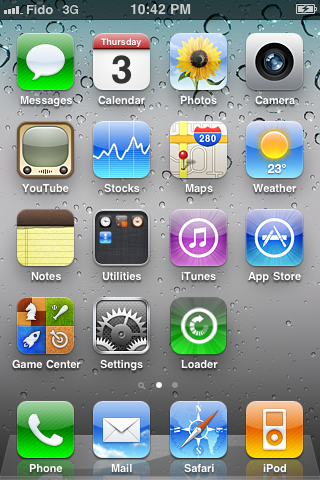
Step Ten
Press to select Cydia then press the large Install Cydia button that appears.


Step Eleven
Once Cydia has installed successfully you can remove Loader by pressing the Options button then the large red Remove Loader.app button.


Step Twelve
Restart your iPhone then run Cydia. Let it do all the necessary updates then follow our Unlock tutorial if possible for your device.

7:34 AM 0
WWDC 2011, iPhone 5, iOS 5 to be announced on June 5?
Apple intelligence 9to5mac claims that Setteb.it reports that Apple’s annual WWDC will likely be held on June 5-9th this year. The annual WWDC is marked by the typical ‘Corporate Meeting’ placeholder.

WWDC is a conference held annually in California by Apple Inc. The conference is primarily used by Apple to showcase its new software and technologies for developers, as well as offering hands-on labs and feedback sessions. (Wikipedia)
In WWDC 2011, Apple may announce the much waited iPhone 5 and also iOS 5 GM may be introduced.
7:29 AM 0
These are instructions on how to jailbreak your iPhone 3GS and iPhone 4 using Greenpois0n for Windows. Greenpois0n supports the iOS 4.1 and iOS 4.2.1 firmware. Use Limera1n if you want to jailbreak iOS 4.0, iOS 4.0.1, iOS 4.0.2.
Remember: Do not update to iOS 4.2.1 if you need the unlock. Ultrasn0w does not support that baseband yet. The only exception is the iPhone 4. You can update to iOS 4.2.1 without upgrading your baseband by following this tutorial.
Step One
Open your web browser of choice and navigate to http://www.greenpois0n.com. Click the Windows link at the bottom of the screen.
Step Two
When prompted save the download to your desktop
Step Three
Double click the downloaded gp_win_rc5_b2.zip file then drag the greenpois0n.exe file to the desktop. Double greenpois0n.exe from the desktop to launch the application
Step Four
Power off your iPhone then click the large Prepare to Jailbreak (DFU) button
Step Five
You will now be instructed on how to place your iPhone into DFU mode. You can get help with this here.
You will be asked to press and hold the sleep button for 2 seconds.
Continue holding sleep; press and hold home for 10 seconds.
Release sleep button; continue holding home for 15 seconds.
Step Six
Once your iPhone is successfully in DFU mode you may click the Jailbreak button.
Step Seven
Greenpois0n will now jailbreak your device
Step Eight
Click the Quit button once the software application has completed.
You'll notice some verbose mode text scrolling on your device.
Step Nine
After the iPhone restarts you'll notice a new Loader application on your Springboard. Press to launch it.
Step Ten
Press to select Cydia then press the large Install Cydia button that appears.
Step Eleven
Once Cydia has installed successfully you can remove Loader by pressing the Options button then the large red Remove Loader.app button.
Step Twelve
Restart your iPhone then run Cydia. Let it do all the necessary updates then follow our Unlock tutorial if possible for your device.
***A big thanks goes everyone who made this jailbreak possible.
6:43 AM 0
White iPhone 4 gets its own Best Buy shelf space
I guess it's clear that white iPhone 4 is launching within few weeks, indeed in Spring 2011. Engadget got another image of Best Buy tag that points at an AT&T white iPhone sold at $599 off contract.

The white iPhone 4 shown in AT&T's online system, Best Buy, Vodafone Germany's inventory and on China's Grey Market.
Anyway, it seems very near! Stay tuned as we get more news about white iPhone 4.
3:47 AM 0
iPhone Dev Team working on iOS 4.3 untethered jailbreak!
iPhone hacker MuscleNerd, the brain of the iPhone Dev Team, has confirmed that their goal now is getting Monte mode to untether iOS 4.3 jailbreak when it goes public.

and now one goal is to get Monte to untether 4.3-final using 4.2.1 SHSH blobs (and future FW X->FW Y's, etc)Not only that, the Monte mode won't require iOS 4.2b3 SHSH blobs anymore as their goal is to get Monte working with the current iOS 4.2.1 SHSH blobs. So you must tap on Make my life easier in Cydia so that it will be able to save iOS 4.2.1 SHSH blobs.
While MuscleNerd said that their goal is untethering iOS 4.3 jailbreak, that means they've already finished work on the unlock and it looks like they'll release it as soon as iOS 4.3 goes public by mid this month.
Besides, we've already shared with you the news about George Hotz untethered jailbreak when Verizon iPhone 4 delivers. Wait, and have some fun
3:24 AM 0
Jailbreak 4.2.1 Greenpois0n RC5 [Mac] [Updated x6][Guide]
A long-awaited update of Greenpois0n which makes the tool compatible with iOS 4.2.1.all users can run untethered jailbreak firmware 4.2.1, even those who bought a device that natively upright version of the firmware. Below we publish our comprehensive guide to run the jailbreak on a Mac

Recall that Greenpois0n RC5, unlike Redsn0w 0.9.7 Jailbreak Monte and technology, do not use the firmware 4.2 beta 3 and save the certificate SHSH for this firmware, so it can be used by all users.
With Greenpois0n users can perform a jailbreak on your device type untethered. This means you will not need to reconnect the device each time you restart the computer to avoid losing your personal data and, consequently, also the jailbreak itself.
Video Help
We have recently created a video walkthrough of Greenpois0n, you can find in this article.
Guide Boot animated logo
Here, however, our guide to enable and disable the boot logo animated Greenpois0n RC5.
Compatible Devices
- iPod Touch 2G (Model MB and MC)
- iPod Touch 3G
- iPod nano 4G
- iPad 1G
- iPhone 3G (new and old iBoot iBoot)
- iPhone 4
- iPhone 4 Verizon (not tested)
- Second generation AppleTV (version RC6 onwards)
- Greepois0n RC5_2 for Mac (download)
- iPhone / iPod touch / iPad updated to iOS 4.2.1 (you can update it from iTunes if you have not installed that version of the operating system).
- Mac OS X 10.5 or later.
1. Greenpois0n RC5 download using the link above.
2. Close iTunes, and once finished downloading Greenpois0n, move the application on your desktop and run it. Then click Jailbreak.

4. If you have performed these steps correctly, your device will now be entered into DFU mode and then ready for the jailbreak.
5. From here on, the whole process will be automatic. The success of the operation will be confirmed directly by Greenpois0n.
Now is the time to work on the iPhone, a few simple steps.
1. You will notice a new icon named Loader, open it.

2. Open the Loader, please click on the item and then click Install Cydia.

3. It will start automatically install Cydia after which you will be asked if you want to delete the Loader from the device. Click on Remove to uninstall the application. Recommend it.
Congratulations! Now your device is unlocked and you have Cydia installed in the Home!
Notes
- If Cydia will not appear at the end of the procedure, try to reboot the terminal and you should see the icon in the Home.
- This type of jailbreak is NOT to be performed by users with iPhone foreigners.
- By performing the jailbreak with Greenpois0n RC5 will automatically apply the boot animation logo of Chronic Dev Team.
However, if you have problems with crashes and Greenpois0n Snow Leopard, you should follow this guide to correct the defect.
UPDATE 1: Due to some problems encountered by users, the Chronic Dev Team has removed the link to download Greenpois0n RC5. Probably, once corrected the bugs found by users, will again be made available the download of what, at this point should be the version of RC6 Greenpois0n .
UPDATE 2: MuscleNerd announced that those who have already run the jailbreak with tethered Redsn0w Greenpois0n RC5 can use to make it untethered. Will therefore not be repaired. For those, however, fails to open its Greenpois0n, Chronic Dev temporary solution is to "hold the Home button until it begins to run code Greenpois0n.
UPDATE 3: Users should not be able to install Cydia through the RC5 Loader Greenpois0n can do so using the latest version of Redsn0w (more info in update 6).

UPDATE 4: Pod2G announced that the next few hours will print a new version of Greenpois0n that will fix the annoying bug that prevents the start of the jailbreak using the current version of the tool.

UPDATE 5: has just been released, unofficially, a new version of RC5 Greenpois0n for Mac OS X that fixes the bugs found during the activation of the jailbreak. You can download it here . Now the jailbreak will be done correctly and also much faster. (It still has to resolve the problem by installing from Cydia Loader, but in this case the fault is to be referred to the server downtime of Chronic Dev Team and Saurik).
UPDATE 6: Install Cydia | Alternative Method.
If you still fail to properly install Cydia, the jailbreak after Greenpois0n with, do not click on the Loader, but downloaded the latest version of Mac RedSn0w available here.
Next, execute Redsn0w and click Browse to select the firmware 4.2.1 downloaded from this link. Go ahead and just select the option "Install Cydia" and, for you have finished, you will have Cydia on your iPhone
2:48 AM 0
Sunday, February 6, 2011
First Verizon iPhone 4 delivered, hits Texas (video)
It looks like some customers have been receiving their Verizon iPhone 4 a lot earlier than it should, as expected. After the shortlived pre-order window for the Verizon iPhone 4 ended on February 3rd, some customers were notified within hours that their orders have already been shipped. Now the first Verizon iPhone 4 hits Texas as the customer reports.
Verizon iPhone 4 should be delivered to all customers on February 10th but here we have a customer who received it on February 6. This individual went directly to the UPS Center to pick up his device. MacRumors is reporting that many of their readers are expecting delivery on Monday.
Here's the video
2:42 AM 0
GreenPois0n RC6 will Bring Untethered iOS 4.2.1 Jailbreak for Apple TV
After the release of Greenpois0n RC5 untethered jailbreak on iOS 4.2.1 now for both Mac OS X and Windows, here comes some good news about Apple TV 2G users. iPhone hacker pod2g has confirmed that Greenpois0n RC6 will be available soon to bring untethered jailbreak on iOS 4.2.1 for Apple TV 2G.

lamJam: greenpois0n rc5/5.2 not workingwith AppleTV2 – @pod2g says it will in next build.Besides, Greenpois0n RC5 readme contains supported devices which includes Apple TV 2G support coming in the RC6.
pod2g: @BlamJam sorry but I was talking about RC6.
*** greenpois0n 1.0 RC5 ***In meantime, you can use the Windows and Mac OS X version of Greenpois0n RC5 to untether iOS 4.2.1 jailbreak for all devices mentioned above in the readme. We'll keep you informed whenever the RC6 version is released. Stay tuned
> Description of the software:
greenpois0n will Jailbreak your iDevice.
Supported iDevices:
- - iPod Touch 2G (all bootroms)
- - iPod Touch 3G
- - iPod Touch 4G
- - iPad 1G
- - iPhone 3Gs (all bootroms)
- - iPhone 4
- - iPhone 4 Verizon (_not_tested_)
- - ___AppleTV 2___ (support will be added in RC6)
2:24 AM 0
GreenPois0n RC5 for Windows Released to iOS 4.2.1 Untethered Jailbreak
As promised, Chronic Dev Team has just released Greenpois0n for Windows to untethered jailbreak for iOS 4.2.1 for iPhone 4G, 3GS, iPod touch 4G, 3G, 2G and iPad.

You can follow our Mac guide, it's the same exactly, check the full step by step guide posted here.
Download GreenPois0n for Windows [Mirror]
Download iOS 4.2.1 for iPhone 4, 3GS, iPod touch 4G, 3G, 2G and iPad
2:19 AM 0
Here's How to Fix GreenPois0n RC5 Issues & Bugs
Chronic Dev Team has released GreenPois0n RC5 just yesterday for Mac OS X and they are about to release the Windows version. Most of our readers has successfully jailbroken their devices but few of them are still facing some problems. So here's a quick instructions to beyond this issues & bugs.

1st problem: stuck on “Greenpois0n initialized”
This one is the most easier problem, just run the new version of GreenPois0n known as RC5_2 by running the same guide posted here as we've already changed the download mirrors.
2nd problem: Greenpois0n loader crashed
Greenpois0n loader will only work when its official site works well. The site is often down because of 500,000 hits at the first night. If the site still not working, you can just follow the below steps:
STEP 1: Switch off your iOS device and run Redsn0w 0.9.7b6.
STEP 2: Select your firmware and just check on ‘Install Cydia’ option then complete the instructions to install Cydia.
3rd problem: Greenpois0n results by “FAILED” Error
Follow the steps below to solve this problem:
STEP 1: Connect your iOS device and run Greenpois0n RC5_2.
STEP 2: Open the TERMINAL, type in ‘cd Desktop’ (without quotes) and press Enter.
STEP 3: Now type in open Greenpois0n.app/Contents/MacOS/greenpois0n and press Enter. It will result in a new window and Greenpois0n will be started.
STEP 4: Follow the self explanatory instructions to put your device in DFU mode. The jailbreak process will start.
STEP 5: After it is jailbroken, a greenpois0n Loader will be there now. This is to let you install Cydia.
4th problem: Your device stuck on DFU mode after jailbroken
In this case, you have to leave your iOS device as it is for almost 2 minutes. Now press and keep on holding the home and power button simultaneously for almost 10 to 15 seconds until your device boots normally.
5th problem: Unable to find fs_mount, fs_unmount, fs_load_file Errors
Your iOS device must be ‘Switched Off’ when you connect, otherwise these errors will come.
In case you are facing any other problems, kindly leave us a comment below and we'll try to help you. [VeryRite]
2:09 AM 0


